Add ubt cluster to your ci pipeline
In case you want to check if your project could build or used with the tools our clusters provide follow these instructions.
Currently for festus only!
Using Generic GitLab Runners
The UBT GitLab instance provides a set of generic runners that execute jobs on the Keylab HPC build farm. The following runner tags are available:
| Tag | Purpose | Remarks |
|---|---|---|
znver4 |
Run jobs on a system with the znver4 microarchitecture |
Mutually exclusive with znver5. |
znver5 |
Run jobs on a system with the znver5 microarchitecture |
Mutually exclusive with znver4. |
ubthpc_festus |
Use the Festus base image and software environment | See the subsection below on using modules. Mutually exclusive with all tags except znver4 and znver5. |
ubthpc_general_docker_mid |
Docker-based runner for jobs with moderate resource requirements | Mutually exclusive with ubthpc_festus and all ubthpc_native runners. |
ubthpc_native |
Generic shell runner (native execution) | Mutually exclusive with ubthpc_general_docker_mid and ubthpc_festus. |
Using Modules in CI/CD Jobs
If your job uses the ubthpc_festus runner and requires access to the Festus software (LMOD) modules, initialize the Lmod environment in your before_script:
before_script:
  - source /etc/profile.d/lmod.sh
This makes the module command available, allowing you to load the required software modules during your CI/CD job.
Adding Group runner
In case you want to keep you projects only readable to your group or like to do some install automation we recommend to setup a runner for your group.
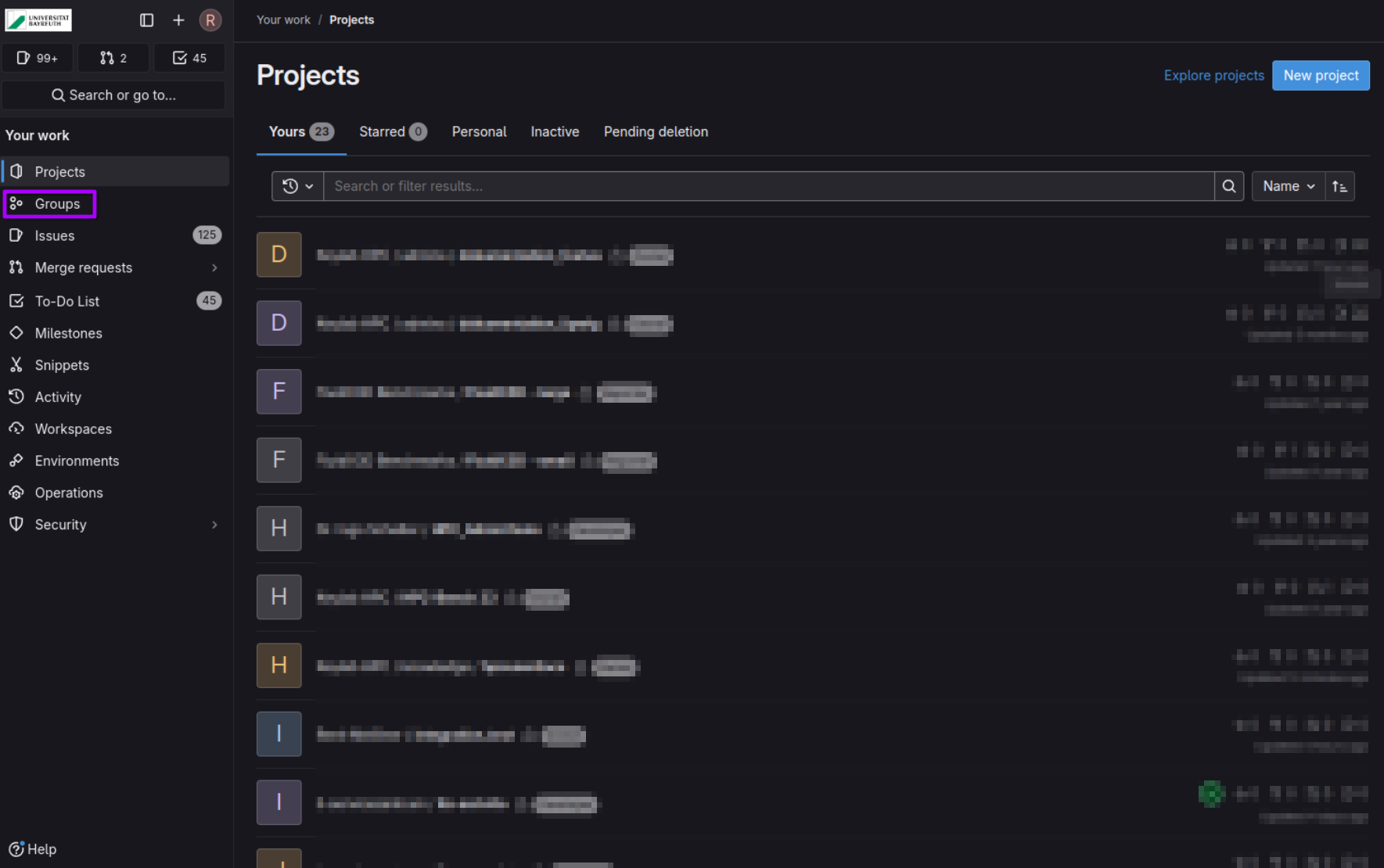
First head to group you want to add a runner to:
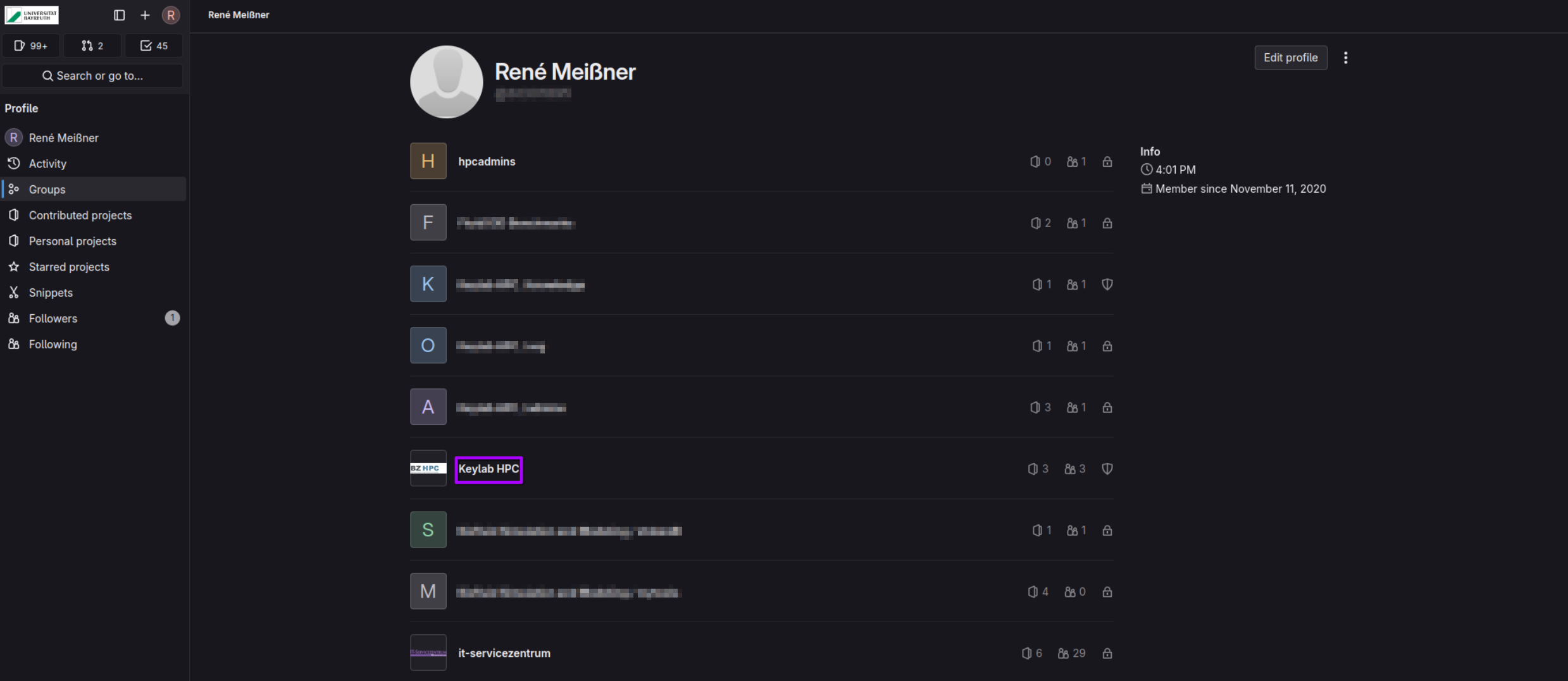
Choose the group; in this example “Keylab HPC”:
On NavBar choose “Build”->”Runners” :
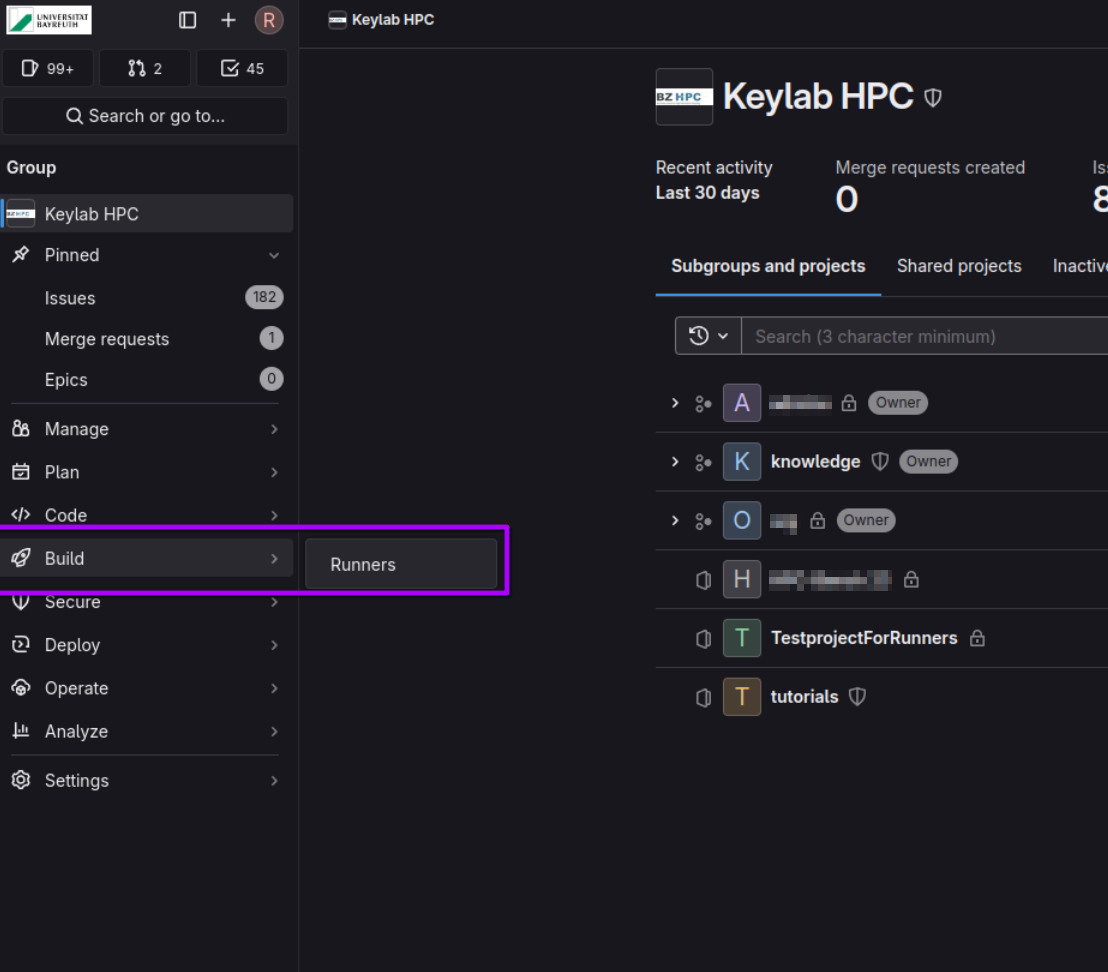
Then add new runner by click “New group runner”:

Add a suitable Tag to identify cluster-specific ci jobs and click “Create runner”:
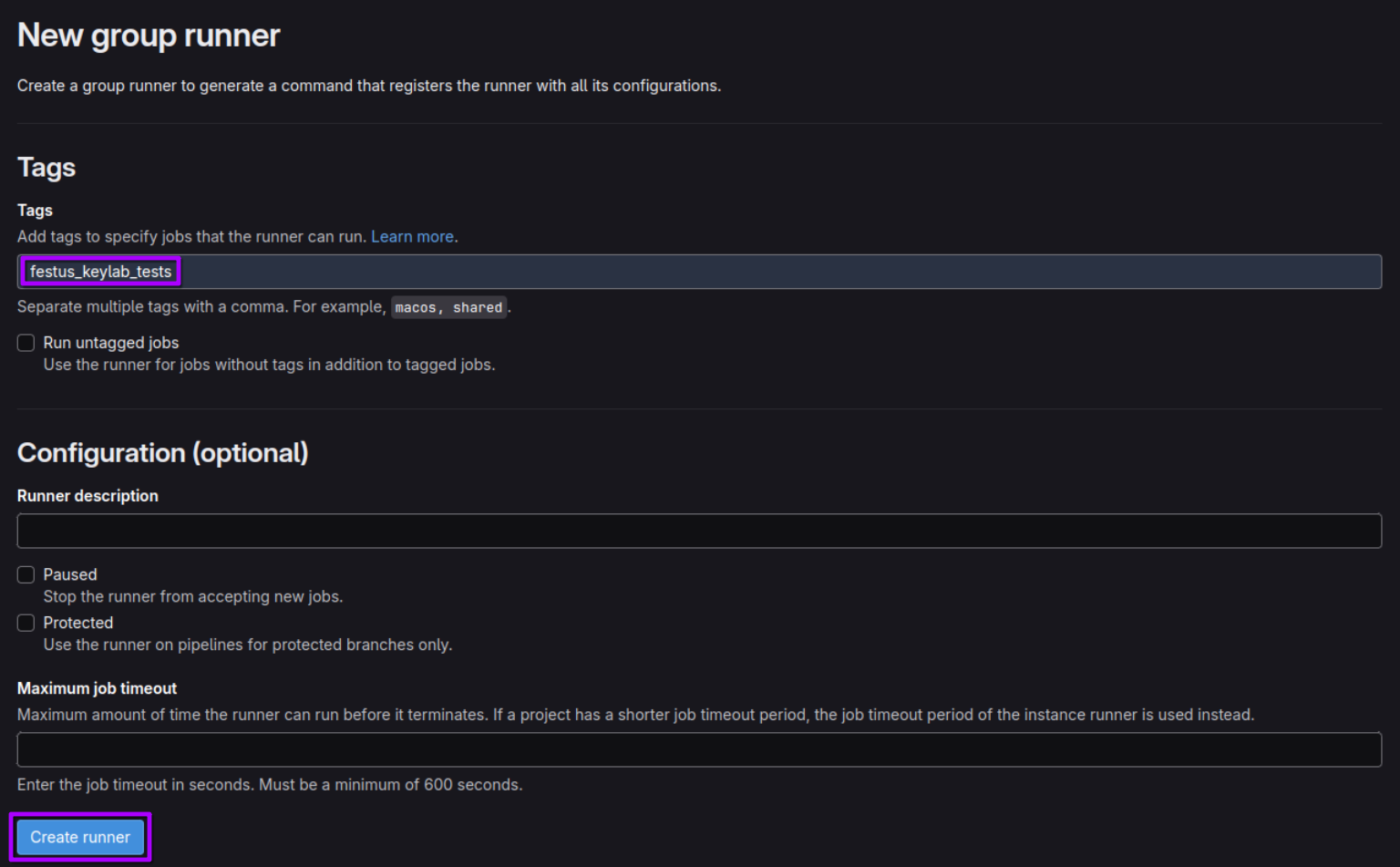
After you created the runner please pass the generated token to hpc staff:
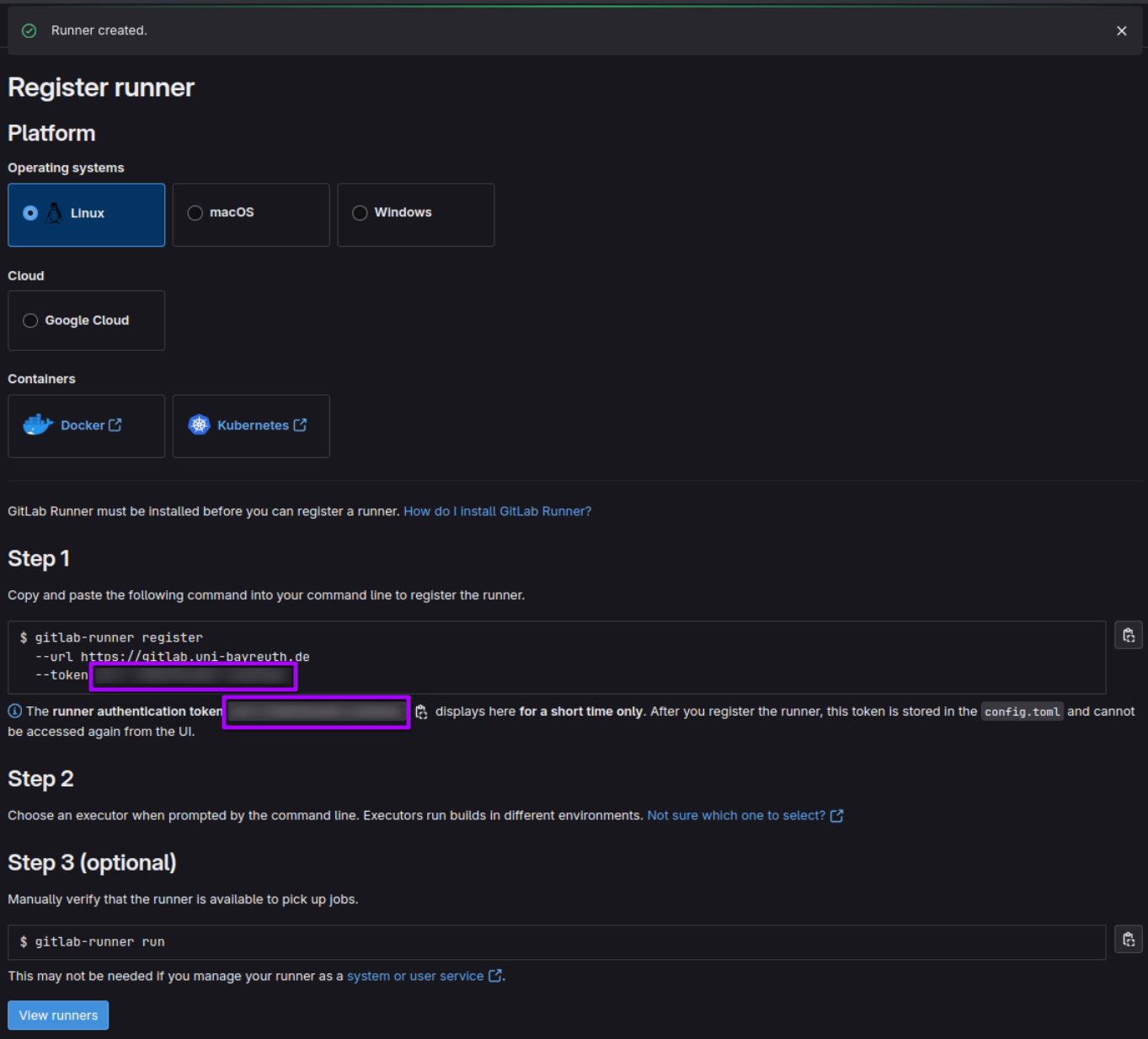
We will then register the runner on the login nodes.
Adding cluster to pipeline
When a runner is registered on our cluster you could add it to your pipeline.
Lets go trough an simple example step by step.
In the following example we will build a pipeline to check if your code works with your “favourite” gnu-compiler and or intel-module.
Lets start with this simple C Code four our example:
1 2 3 4 5 6 7 8 9 10 | |
src/compiler_check.c .
If you haven’t already add a “.gitlab-ci.yml” to your project. First job we will add to this is the jobs that uses the intel or gnu module (on festus) to compile our simple code.
build-job-intel:
  stage: build
  tags:
    - festus_keylab_tests
  script:
    - module load OneAPI_2024.2.1
    - icx src/compiler_check.c -o compiler_check.icx
  artifacts:
    paths:
      - compiler_check.icx
build-job-gnu:
  stage: build
  tags:
    - festus_keylab_tests
  script:
    - module load gnu/14.1
    - gcc src/compiler_check.c -o compiler_check.gcc
  artifacts:
    paths:
      - compiler_check.gcc
Important is that you use the right tag to ensure the wanted runner is used. Then we just pass script commands to build our simple code. The artifacts:-part ensures that the newly build executable stays available for the next stage.
For the test-stage we only try to run the executables:
test-gnu:
  stage: test
  tags:
    - festus_keylab_tests
  script:
    - module load gnu/14.1
    - ./compiler_check.gcc
test-icx:
  stage: test
  tags:
    - festus_keylab_tests
  script:
    - module load OneAPI_2024.2.1
    - ./compiler_check.icx
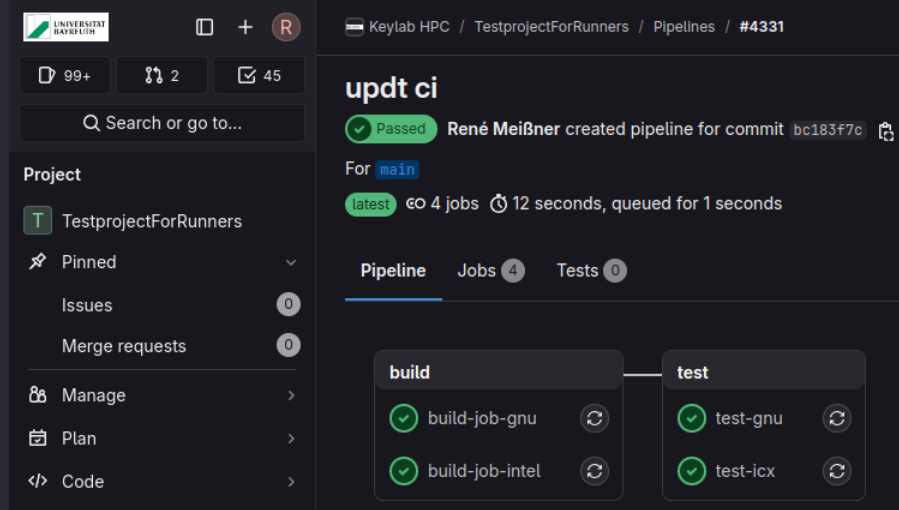
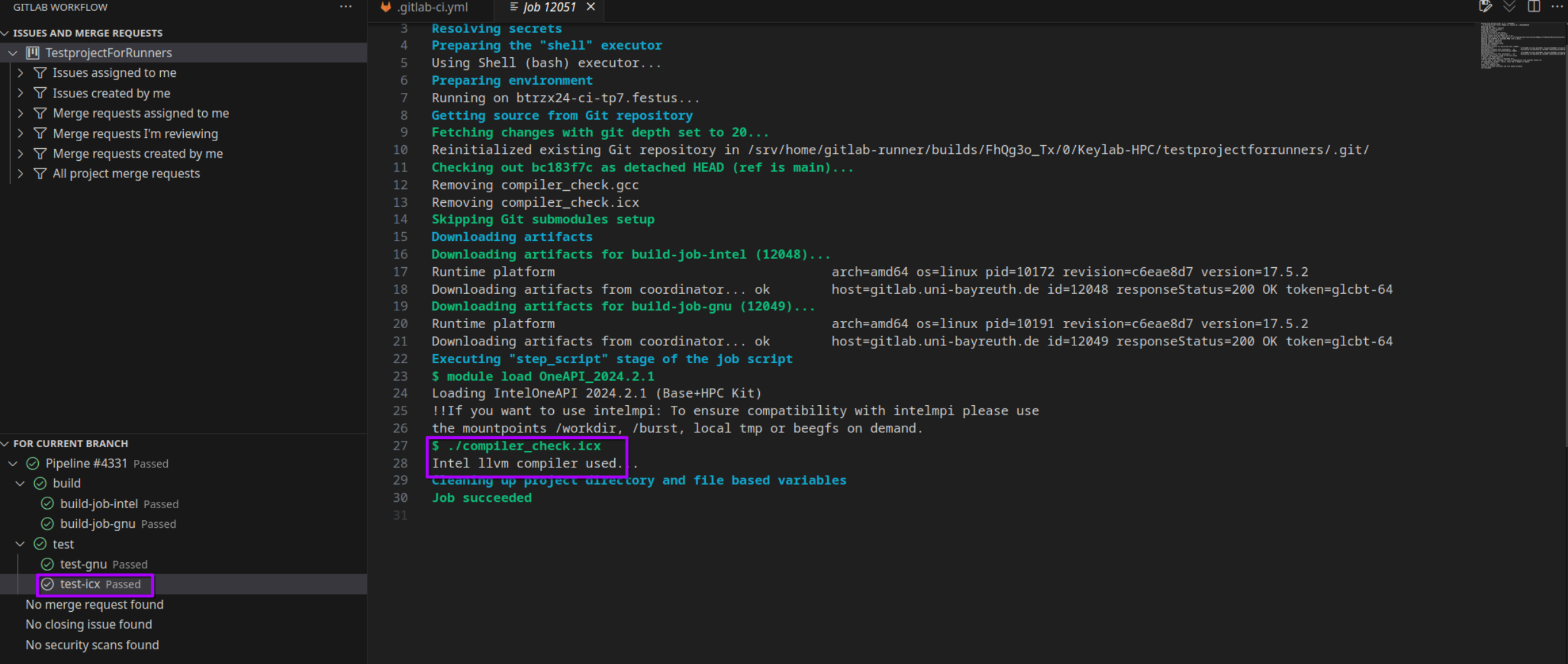
When your next commit is done your project runs trough the pipeline stages: